
Review
A key component of the Curation workflow within Blueprint is the Review functionality. This allows Practice Group Reviewers the ability to review any Documents that have been submitted to the application via the Nomination process.
Document Review
When new Documents are submitted to Blueprint they are placed in a Pending approval status by default. Reviewers are notified of any new submissions via email as configured within the Notificationssettings within Blueprint.
In order to move from the Pending Status, Reviewers will need access to the specific Document via the Document Full View page. In the top right of this page there will be a ‘Document Review’ section which will show the current status of the Document.
Reviewers will have the option to click this field and select either a ‘Rejected’ or ‘Approved’ status. Both of these options will load a specific modal with further information before confirming the new status.

Rejected
If a Reviewer chooses the Rejected status then the Reject Document modal will appear and provide the following information:
Rejection Category - This is a required field and allows the Reviewer to stipulate why the Document is being Rejected
Rejection Explanation - This is an optional field and allows the Reviewer to provide further information as to why the Document is being Rejected
Once the above information has been populated the User can click the ‘Reject Document’ button and this will place the Document in a Rejected Status.
Approved
If a Reviewer chooses the Approved status then the Approve Document modal will appear and provide the Reviewer with a confirmation option to set the Document to be Approved. They will also be provided with version publishing options:
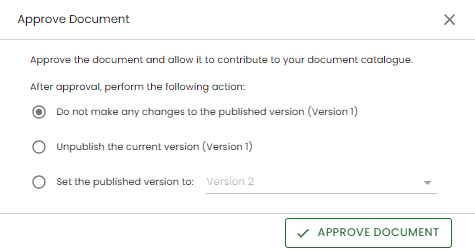
Once this is confirmed the Document is place in an Approved status and the relevant version status updated if applicable.
Version Publishing
Dependant on how you have configured your Application Roles the ability to see draft Documents will likely be restricted to certain Users. In order to make your Approved Documents available to all Users you will need to Publish a specific version. This can be done alongside the Approval as detail in the section above or as part of Version Control, further information can be found within the Version Control section
Reviewers
In order to be able to review Nominated Documents the following configuration will need to be enabled:
The Document Review workflow feature will need to be enabled - Further information can be found within the Feature Enablement section
Users will need to be associated to the relevant Practice Group - Further information can be found within the Practice Groups section
Users will need the appropriate Review permissions - Further information can be found within the Application Roles section
Next Review Date
As part of approving a Document you can set a Review Date for the Document.
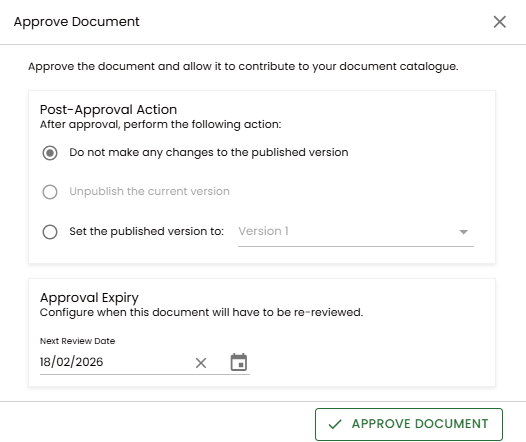
Once the Review is close, email notifications will be sent to the Practice Group Reviewers. These notifications will be sent 30, 14, 7, 3, 2 and 1 day(s) before the Next Review Date. If the Document has not been reviewed by this date it will move into an Expired status.
The Next Review Dates are configured by Practice Group with further details found on the Practice Groups page.