
Notifications
Throughout the Blueprint application there are workflows and processes that can generate email notifications to users of Blueprint.
Document Nomination events
When a Document is Nominated there are two Notification events available:
Acknowledgement to the Submitter to confirm their Document has been nominated successfully
Email to the configured Reviewers to inform them that a new Document is ready for Review.
Document Approval/Rejection events
Once a Document has been reviewed and the status amended to either ‘Approved’ or ‘Rejected’ there are two Notification events available:
Email to the Submitter to inform them that their Document has been Approved
Email to the Submitter to inform them that their Document has been Rejected
Document Review Dates
There are two email notification events for Documents which are near their review expiry or that have now expired:
Email to Reviewers to inform them that Documents are due to expired which are sent 30, 14, 7, 3, 2 and 1 day(s) prior to the Next Review Date
Email to Reviewers to inform that specific Documents have now expired
Knowledge Bundle creation event
Once a Knowledge Bundle has been created you can configure a Notification to be sent to all users of the Blueprint application to inform them that a new Bundle has been created so that you can easily draw attention and engagement with packs of Knowledge.
Configuration
Within the configuration of Notifications you will need to set up an Outbound Account. There are two types of accounts that can be configured- Username & Password, which supports basic authentication, or Microsoft Exchange, which supports OAuth for Microsoft Exchange. Within this you can trigger a test email to ensure the emails are working as expected.
The Email sender and Email name are not editable from this outbound accounts modal, these need to be updated by IT support.
Each Notification event can be enabled or disabled from this screen.
Select edit on an event will open an HTML editor where you will be able to configure the following:
Email Subject
Email Body Template - This is the main body of the email and is in an HTML structure which you can amend
Placeholders - Any custom fields you create within Blueprint can be added into your email templates and auto-populate the metadata into the email
Microsoft Exchange
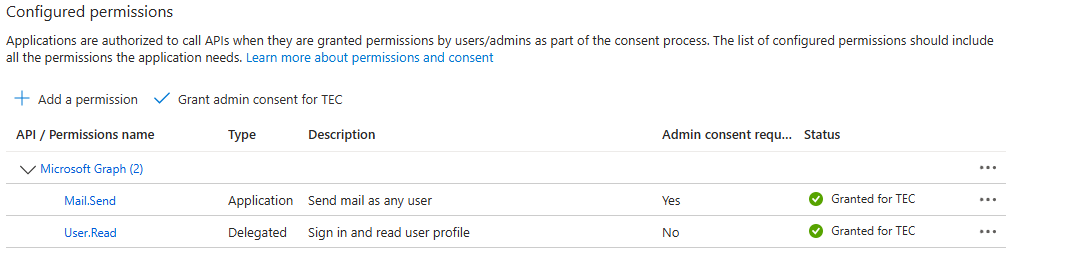
To configure a Microsoft Exchange account, you will need your Tenant ID, Client ID, and Client Secret of an App Registration in Entra in order to allow for authentication.
The App Registration will require the “Mail.Send“ and “User.Read” permissions in order to successfully authenticate.
Username and Password
To configure a Username & Password account, you’ll need the server address, server port, and the username & password associated with the account if authentication is required.