
Nomination
Document Nomination is a crucial process within Blueprint. This feature allows you to add Documents to Blueprint.
Multiple documents can be added at a time and metadata attached to each document.
Document Nomination
Users can start the nomination workflow from most areas of Blueprint. This is available via the ‘Create’ button at the top of the page. Clicking Create will provide the option for ‘Nominate Documents’. This can also be accessed directly from your iManage library using the right-click context menu.
There are three steps to this workflow as detailed below:
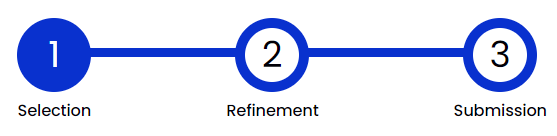
Selection
This first step of the workflow allows the user to select the Document(s) they wish to add to Blueprint. There are three options for sourcing these Documents:
iManage - Multiple libraries can be configured within Document Stores
SharePoint
Local file storage
All the above options can be used for submitting. There is a maximum document limit of 50 Documents and a maximum file size of 100mb.
iManage nomination
Clicking on the ‘Add from iManage’ option will load an iManage search modal and allow the user to search the configured iManage library for Documents.
Users will need to log into iManage using their credentials if they are not already logged in.
Users can also start the nomination process directly from their iManage library. Blueprint is available via the right-click context menu. Multiple Documents can be selected and then clicking on the nomination option will navigate the user to the Selection step within the Nomination workflow with the selected document(s) listed.
SharePoint
Clicking on the ‘Add from SharePoint’ option will load a SharePoint search modal and allow the user to search their SharePoint sites for Documents to add.
Once Documents have been selected the user can then navigate to the Refinement step.
Local file storage nomination
Clicking on the ‘My Computer’ option will open File Explorer and allow the user to browse local folders and select Documents to add.
Once Documents have been selected the user can then navigate to the Refinement step.
Refinement
The second step of the workflow enables the user to see and review the Document(s) alongside adding relevant metadata.
Any metadata fields that have been created and assigned to the Nomination context within the Fields and Contexts settings will show here. Any fields that have been set to automatically map iManage field data within Document Stores will also be automatically populated as part of navigating to this step in the workflow.
Starting with version 1.14, Blueprint allows for the suggestion of metadata via our AI Suggestions feature. You can find out more information about this feature here AI Suggestions.
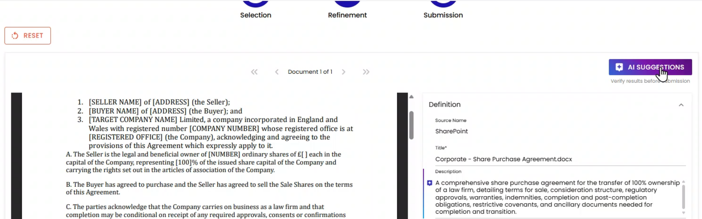
Fields that have restrictions or are set as mandatory will need to have valid data entries before navigating to the Submission step.
Submission
This is the final step in the workflow and allows the user to review all the Documents being added and the metadata being applied to the Documents. Upon pressing ‘Submit’ the Documents will be added to Blueprint. Any errors in processing will be raised within this page and any unsuccessful submissions will remain within the Selection until the user actively removes them.