
Once Knowledge has been added to the Blueprint application users will be able to search for Knowledge. There are multiple ways to search for Documents within Blueprint.
Quick Search Bar
When on any page within Blueprint there will be a Document Search Bar available at the top of the page. Any text entered within this search bar will search the title and content of all Documents contained within Blueprint.

Typing in search criteria and pressing enter will navigate the user to the Document Catalogue and return the results of their search.
Document Search Box
This search option is only available on the Document Catalogue page. It works in the same way as the Quick Search Bar in that it will search the title and content of all Documents contained within Blueprint.

If a user has selected one of the Catalogue Filters then the search is focused only on the segment of Documents currently being displayed. i.e. if a user has selected the ‘Awaiting Review’ filter which only shows Documents in a Pending status then any search will only return documents with the Pending status and matching the search criteria.
Advanced Filters
In addition to the Search Options above, users can apply additional filters to their search criteria. Accessed by the ‘Advanced’ button to the right of the Document Search Box. Clicking this button will open the Document Search Filters modal:
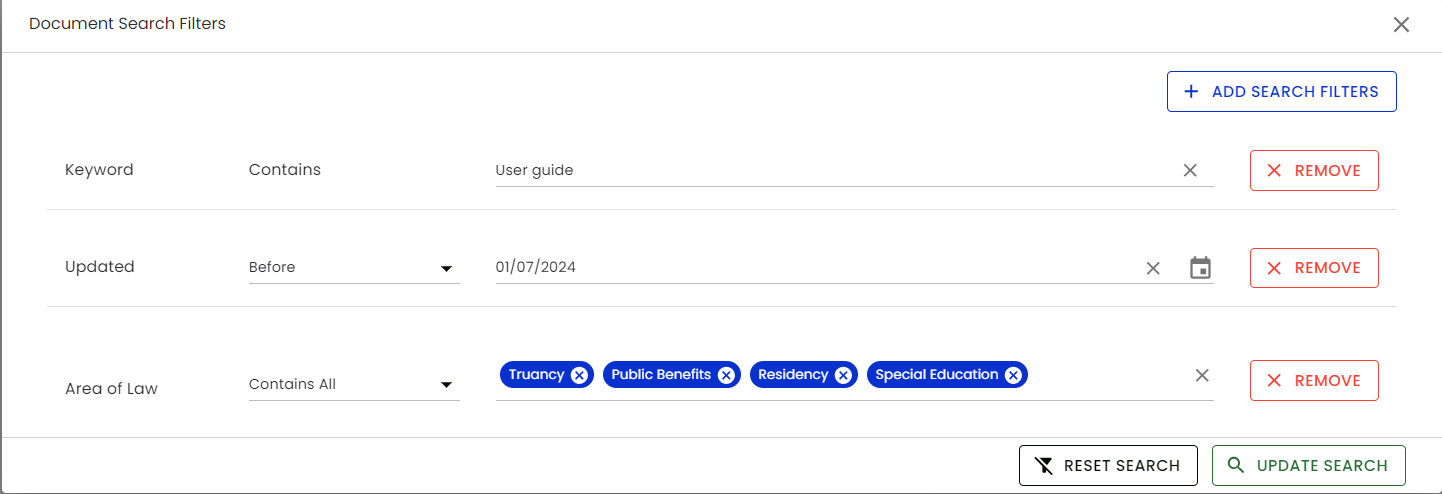
From here users can select multiple filters:
-
Keyword - This searches any title and content for the search criteria entered
-
Title - This is a specific search on Document titles
-
Description - This is a specific search on Document descriptions
-
Content - This searches the content of Documents
-
Updated - This allows the filtering of the last time Documents were updated
-
Created - This allows filtering based on the date the Documents were created
-
Link Link - This allows filtering based on whether a Document has Live Linking enabled
-
Practice Group - This allows filtering based on a single or multiple Practice Groups
-
Archived - Any Documents that have been Archived within Blueprint
-
Archived Date - Allows date range searching based on the date Documents were Archived
-
Has Published Versions - Allows filtering for any Document that do or don’t have any Published versions
-
Review Status - Allows filtering based on Pending, Approved or Rejected Documents
-
Status Last Changed - Filters based on date the Document status was last changed
-
Plus all custom Fields that have been created within Fields.
Search refining
Selected Fields will have options to further refine the filtering criteria for example Date fields allow you to search Before, After, On and Between dates and Taxonomy fields allow you to search Contains All, Contains Any, Has Only, Is Empty and Is Not Empty. Other Field types have similar options available.
Select multiple filters
Multiple fields can be selected as criteria which function as ‘AND’ searching. i.e. in the above example the search would identify Documents where:
-
The phrase ‘User guide’ appears within the Title and Content. AND
-
Documents last updated before 01/07/2024. AND
-
Contains all of the following values within the Area of Law Field:
-
Truancy
-
Public Benefits
-
Residency
-
Special Education
-