
One of the main landing pages within Blueprint is the Document Catalogue. Within this page users can search, browse and access Document content.
Documents are displayed within a table format and by default are ordered by created date descending. There are several pieces of functionality available from this page as detailed below.
Document Summary
On the left hand side of the table view, each document will show summary information:
-
Document Title
-
Document ID
-
Document Version Status (Draft, Published etc)
-
Document Type
Selecting the Document Title will open the Document Full View page for the specified document. Clicking anywhere else of the Document row will open the Document Quick View modal.
Configured Column Headers
Whilst the Summary Column is fixed, all other columns within the table are configurable. Multiple fields can be enabled to show within this table view and can be configured via Contexts.
The Columns are resizeable and can also be sorted ascending/descending by clicking on the column name. Hovering over a sorted column name will show the kebab menu where you can reset the sorting.
Catalogue Filters
You can refine the list of Documents shown within the catalogue by selecting a different catalogue view. Currently these options are set as below:
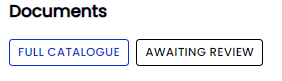
The Full Catalogue option will show the complete selection of Documents within Blueprint.
The Awaiting Review filter will reset the Catalogue View to show only Documents that are in a ‘Pending’ status for the users Practice Group. This option will only be available provided:
-
The Document Review Workflow feature is enabled via Feature Enablement
-
The user has the Relevant permissions granted within Application Roles
-
The user is listed as a Review for at least one Practice Group