
Setting up Azure Open AI through Foundry
Azure OpenAI acts as a container for deployment and management of AI models. Blueprint will connect to one of these models for AI suggestions. Management of this resource is done through Azure Portal and 'Microsoft Foundry', the Foundry comes with many features such as:
Model deployment
Quota control
Guardrails and controls
For the latest documentation on Microsoft Foundry and pricing of Open AI, please visit the below links.
Setting up a new resource
An Open AI resource needs to be set-up through the Azure portal .
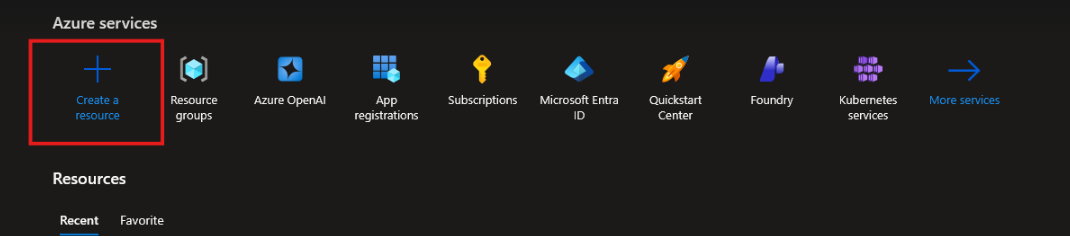
First Click on Create a resource from the portal landing page.
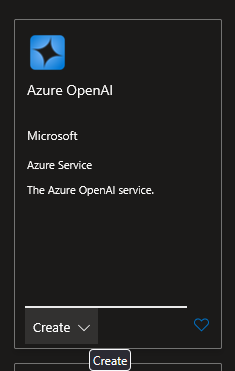
Search for Azure OpenAI resource type and click on Create.
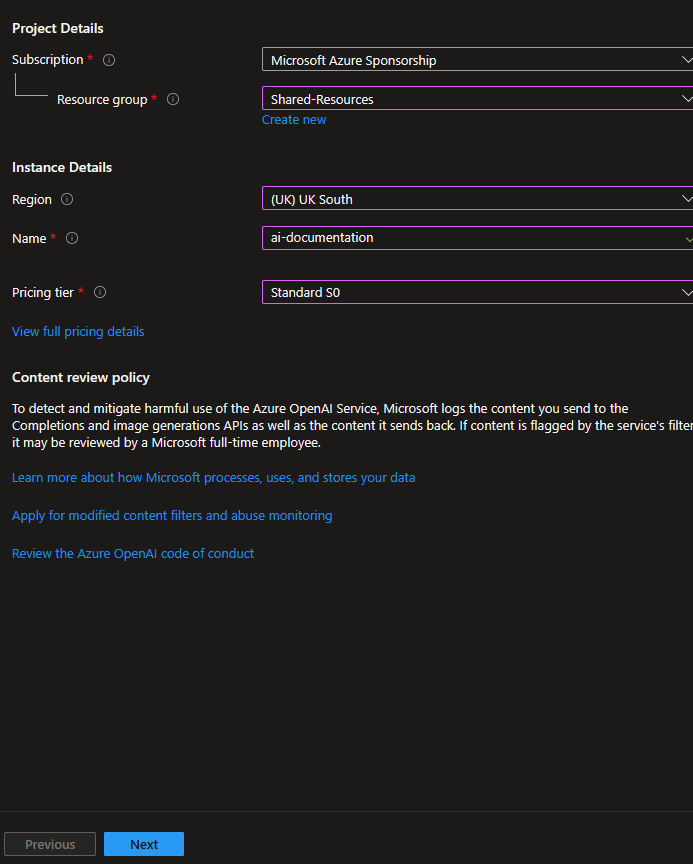
Fill in the relevant details throughout the wizard and click on Create. Note that the Network configuration should be set-up such that the Blueprint API can connect.
Azure will then deploy the resource and will notify when finished.
Deploying a model

Navigate to the Azure Open AI resource and click on the Go to Foundary portal button.
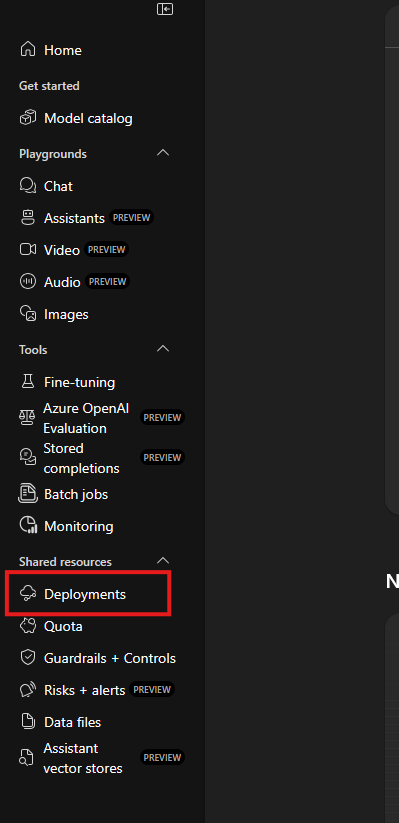
In Foundry navigate to Deployments in the sidebar.
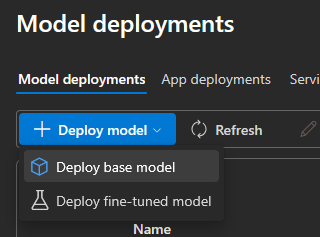
Click on Deploy model and then select Deploy base modal
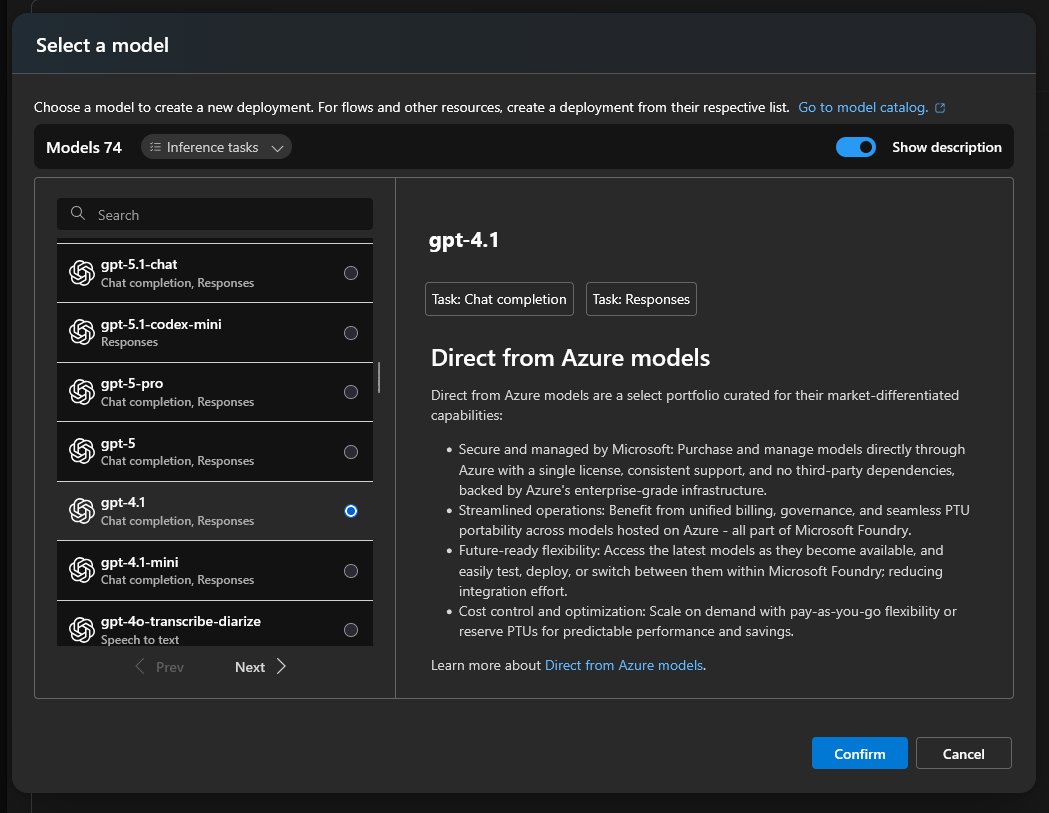
From the selection chose a relevant Chat Completion model, currently we suggest gpt-4.1. This offers strong results for a fair cost. Newer models like gpt-5.1 will have been trained with more recent data and can offer better results for slightly higher costs. There are nano and mini models which can be quicker and cheaper, but results may not be as strong.
Click Confirm once you have chosen a model.
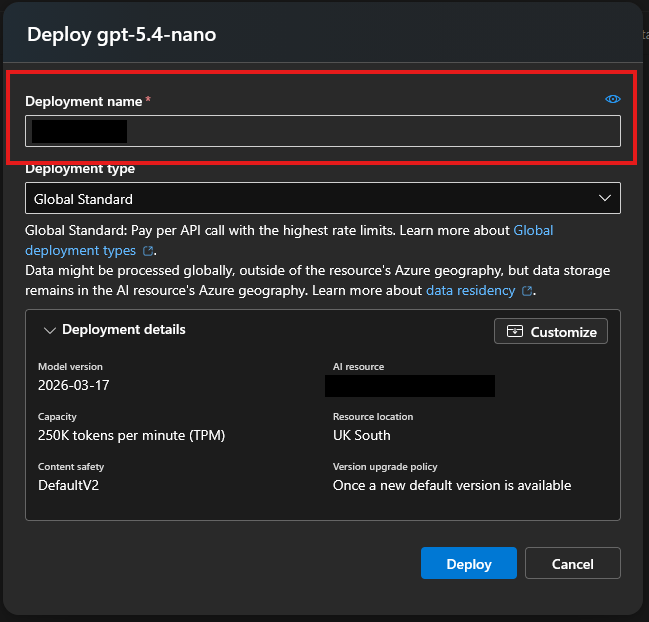
Make a note of the Deployment name, this will be used to configure Blueprint later on. Select the relevant Deployment type. Click Deploy.

Once the model has been deployed it will appear in the table.
Configuring Blueprint
At this point an Open AI resource should be deployed in Azure, you should have access to Microsoft Foundry and a model should be deployed.
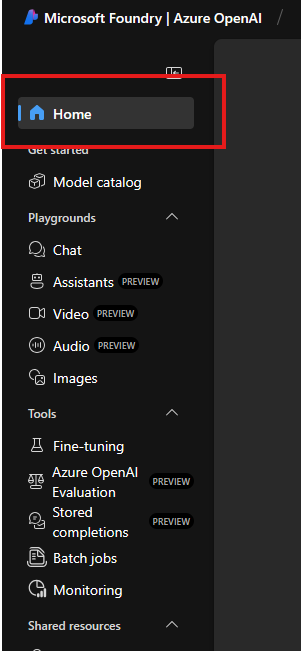
Head over to Foundry and go to the 'Home section'.
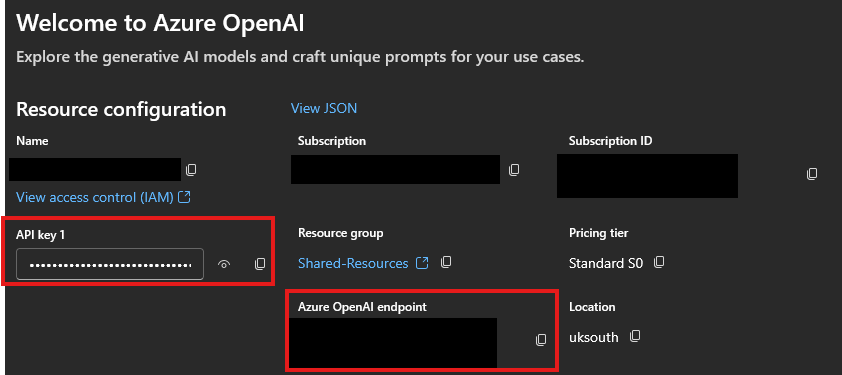
Make a note of the following:
API key 1Azure OpenAI endpointThe
Deployment nameof the model you want to use

From this point, you need to update the core hosting configuration of Blueprint. We strongly advise contacting Tiger Eye to make the following amendments on your behalf, as there is the potential for breaking the deployment of your Blueprint instance.
Proceed only if you are confident, as we may not be able to rectify issues caused by incorrect configuration and may have to charge for investigation and rebuild.
Within the hosting configuration, you will need to add a number of configuration settings. See below for your particular setup
On Premise Configuration
Take a backup of the appsettings.json file within the host configuration in the root of the Blueprint API files.
Open the current appsettings.jsonin the root of the Blueprint API project and change or add the following to the root, making sure to replace the sections below with the relevant details from above. Restart the API app pool.
  "LlmProvider": {
    "Type": "AzureOpenAI",
    "AzureOpenAI": {
      "ApiKey": "<< 1. API key 1 >>",
      "Endpoint": "<< 2. Azure Open AI endpoint >>",
      "DeploymentName": "<< 3. Deployment name >>",
      "DocumentMaxTextLength": 150000
    }
  }
Azure Cloud Configuration
Take a backup of the configuration that’s been applied currently. Open the API app service and navigate to where the configuration has been setup. This may be through Key Vault, Environment Variables or API Configuration. Add or change the following:
Key | Value |
|---|---|
|
|
|
|
| 150000 |
|
|
Optional Configuration
There are some optional extra configuration options, all these options go under the AzureOpenAI property of appsettings.jsonfor on premises Blueprints, or with the LlmProvider__AzureOpenAI__ prefix for Azure cloud.
Key | Description | Value | Default value |
|---|---|---|---|
| The limit of text that is extracted from a nominated document, starting from the beginning. | integer | none |
| The prompt that is given to AI to give context about the description field | string | “Provides a concise description of the document based on its content. This is used to give users a preview of the document without having to open it.” |
| The maximum length of the description field | int | 500 |